Adding Devices to Home Assistant
By default, rtl_433 listens for new devices but doesn't add them to Home Assistant. In a busy or dense area, you're likely to see far more sensors than you want to keep. You may also see devices that don't really exist, due to corrupt or weak decodes. Use this page to add the devices you want, and ignore those you don't.
Doorbells, remotes, and motion sensors only transmit when something happens, so trigger them once to make them show up.
The rtl_433 Page
Open Settings → Devices & Services → rtl_433 → Configure (the gear icon). The rtl_433 page opens with a receiver overview and links to devices and settings. Only administrators can access it.
The overview has three parts:
- a card at the top saying whether the receiver is Online, and how many devices you have added
- My network, with links to your rtl_433 devices and entities on the usual Home Assistant pages
- Receiver settings, Device settings and Device mappings, which each open their own page
The Add or replace device button is at the bottom right.
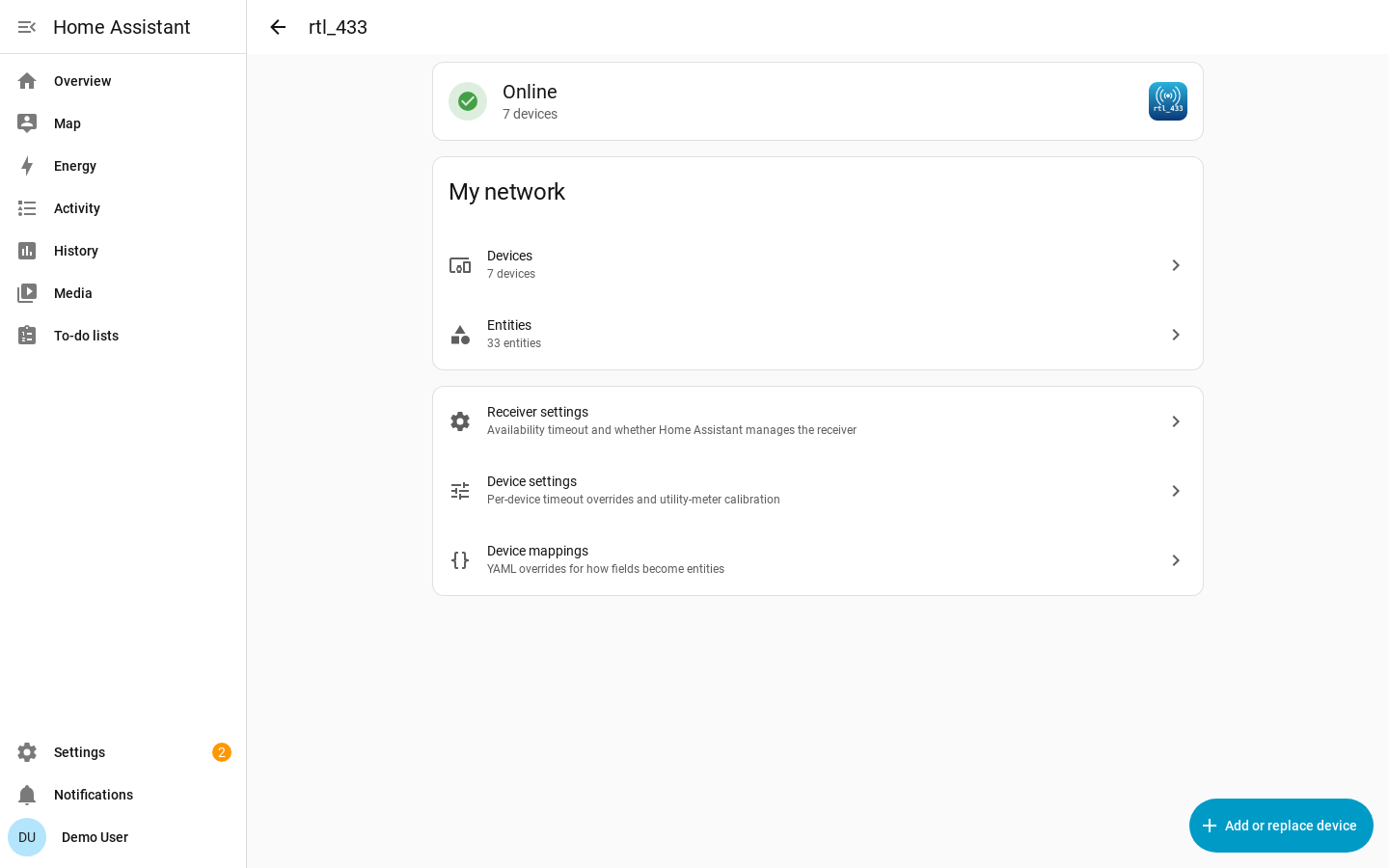
If you have more than one receiver, the top of the page covers all of them: the device count and both My network links include every rtl_433 device, whichever receiver sees it, and the card at the top says how many receivers are offline rather than Online when one of them is down.
Adding Devices
Click Add or replace device. Every device that has been seen is listed here, newest first. If you recently restarted Home Assistant and nothing has transmitted, this page may be empty until something transmits.
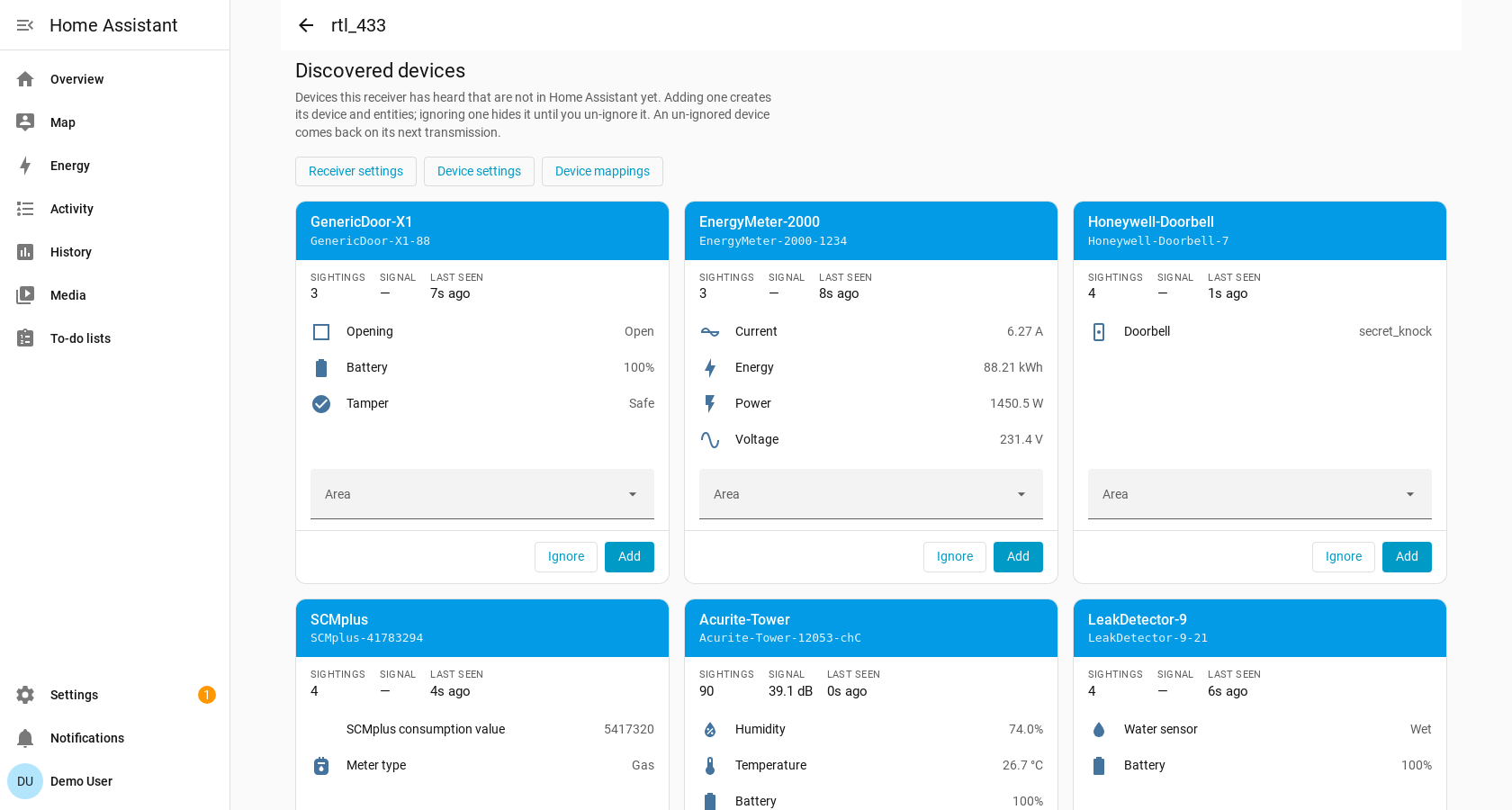
Each card shows the device type rtl_433 decoded, and the device key which includes any ID, channel, and subtype information.
| On the card | What it tells you |
|---|---|
| Sightings | How many times the device has transmitted since Home Assistant started. A real sensor keeps checking in; a bad decode is usually heard once. |
| Signal | The signal-to-noise ratio of the most recent message, or its RSSI when no SNR was reported. Only shown when the server reports levels; your own sensors are normally the strongest. |
| Last seen | How long ago the device last transmitted. Hover over it for the exact first and last times. |
| Readings | The most recent message, shown as the entities adding it would create. |
Readings that cannot be mapped to Home Assistant will not show here. See Device Library for information about adding support for new devices and fields.
Select an Area to assign the device there, or leave it blank if that doesn't make sense.
Click Add to create the device. The card stays where it is and turns green, with a link to the device that was just created.
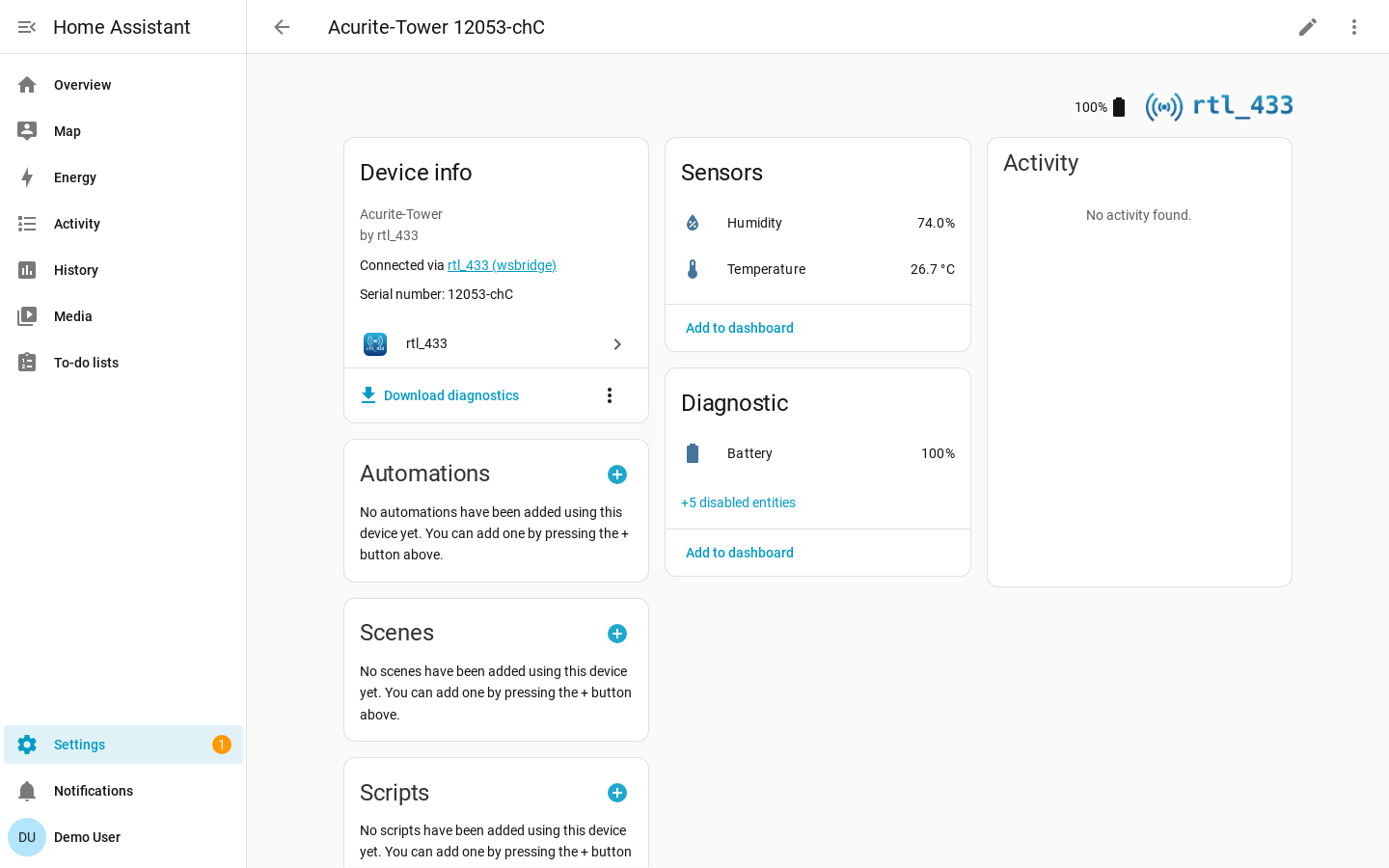
Otherwise, Ignore hides the device.
Clearing the List
In a busy area, the discovered list can fill with devices you do not want. Clear discovered devices empties it so you can find your devices as they transmit again.
Receiver and Device Settings
Receiver settings is the default availability timeout for every device on this receiver, and whether Home Assistant manages the server's own SDR settings — see Configuration.
Device settings targets one device you have already added: its availability timeout override, its motion clear delay, and its utility-meter calibration. Pick the device at the top and the form shows the settings available for that device.
Device mappings is this receiver's device-library overrides, as YAML. Clearing the editor removes them all. Saving checks the YAML syntax and mapping schema. It does not test the mappings against transmissions from your devices.
Ignoring Devices
Sometimes devices are detected that you will never want to add to Home Assistant. Click Ignore on the card to hide it at the bottom of the list. If you made a mistake, go back to Add or replace device, click Show ignored devices under the cards, and then Un-ignore:
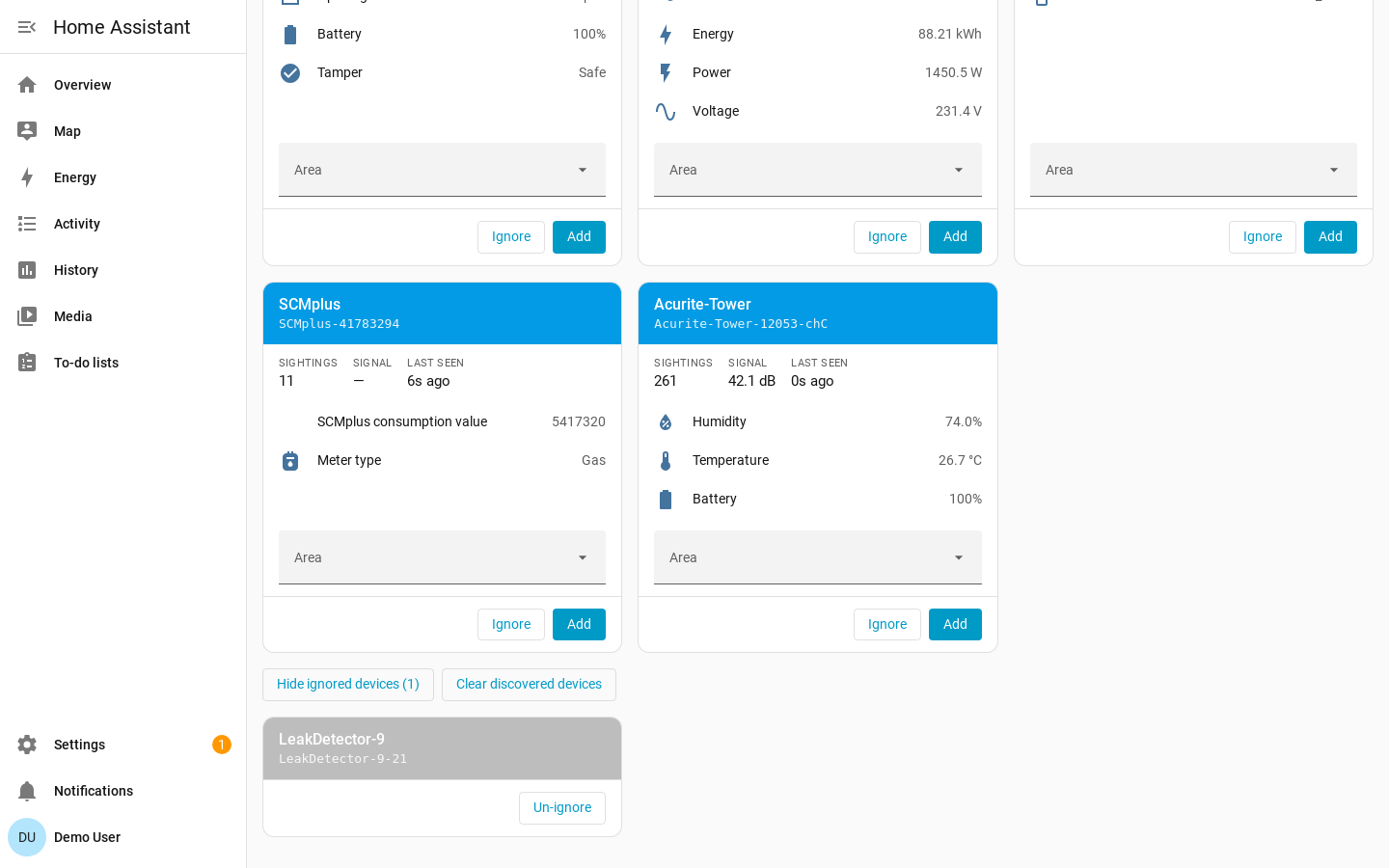
The device reappears the next time it transmits, which for a door or motion sensor means the next time it is triggered.
Deleting Devices
To remove a device you no longer want, open it under Settings → Devices & Services → rtl_433 → the device → Delete.
Deleting removes the device and its entities from Home Assistant, but it does not stop the transmitter. The device returns to the discovered list the next time it transmits, so you can add it back. To keep it out of the list, ignore it instead.